The Perpetual Smartwatch Battery Struggle
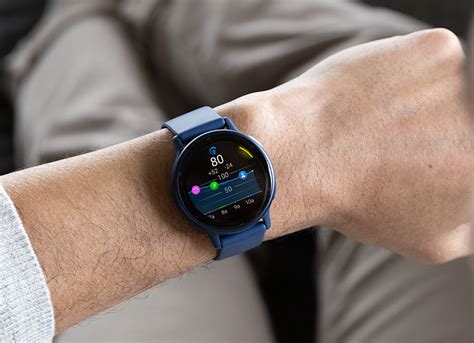
Smartwatches have become indispensable companions, monitoring our health, delivering notifications, and even making payments with a flick of the wrist. However, this packed functionality often comes at the cost of battery life, leaving many users tethered to chargers more often than they’d like. The good news is that you don’t always have to sacrifice features for longevity. By strategically adjusting your device’s settings, you can significantly extend your smartwatch’s battery life, whether you’re hitting the gym or just going about your daily routine.
Understanding What Drains Your Smartwatch Battery
Before optimizing, it’s crucial to understand the main culprits behind rapid battery depletion. High-resolution displays, especially those with ‘Always-On’ functionality, are significant power hogs. GPS tracking, essential for accurate run mapping, consumes substantial energy. Continuous heart rate monitoring, Wi-Fi, Bluetooth, cellular connections, and a barrage of notifications also contribute to the drain. Even background app refresh and complex watch faces can play a role.

General Optimization Strategies for Longer Battery Life
Implementing a few universal changes can dramatically improve your smartwatch’s endurance:
- Screen Brightness: Reduce screen brightness to the lowest comfortable level, or enable auto-brightness if available.
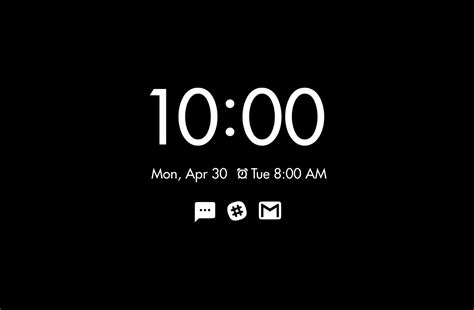
- Always-On Display (AOD): Disabling AOD can provide a substantial battery boost, as the screen remains off until you raise your wrist.
- Vibrations & Haptics: Minimize vibration intensity or duration for notifications. Strong, long vibrations use more power.
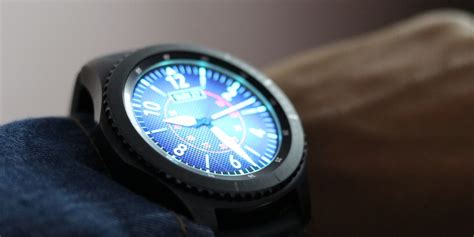
- Watch Faces: Opt for simpler, darker watch faces. Animated or highly detailed faces with many complications constantly refreshing use more power.
- Background App Refresh: Review which apps are allowed to refresh in the background and disable unnecessary ones.
- Software Updates: Keep your smartwatch’s software up to date. Manufacturers often include battery optimizations in updates.
Optimizing Settings for Fitness Tracking
Fitness enthusiasts rely heavily on their smartwatches, but these features are often the most demanding. Here’s how to get your workout in without running out of juice:
- GPS Usage: If your activity doesn’t require ultra-precision (e.g., indoor cycling), consider turning off GPS or using your phone’s GPS instead of the watch’s if you carry it. Some watches allow you to set GPS recording intervals (e.g., every 5 seconds instead of continuous), which saves battery.
- Heart Rate Monitoring: Switch from continuous to periodic heart rate monitoring (e.g., every 10 minutes) when not actively working out. During workouts, ensure it’s on for accurate data, but outside of that, less frequent checks save power.
- Workout Detection: Disable automatic workout detection if you find it’s frequently activating and draining power unnecessarily.
- Sensor Usage: Be mindful of other sensors like SpO2 (blood oxygen) tracking. While valuable, continuous monitoring can be a drain. Enable it only when needed or schedule it.

Balancing Power for Daily Use
For everyday wear, the focus shifts to managing notifications and connectivity:
- Notifications: Be selective about which apps send notifications to your watch. Disable alerts from non-essential apps to reduce screen activations and vibrations. Consider using ‘Do Not Disturb’ or ‘Theater Mode’ during specific hours.
- Wi-Fi & Bluetooth: If your watch has Wi-Fi, it generally uses more power than Bluetooth for data transfer. Ensure your phone and watch are connected via Bluetooth unless Wi-Fi is specifically needed. Disable Wi-Fi if you’re consistently out of range of known networks.
- Voice Assistant: If your watch has a ‘Hey Google’ or ‘Siri’ wake-word detection, disabling it can save battery, as the microphone is constantly listening.
- Cellular Connectivity: If you have an LTE-enabled smartwatch, turn off cellular if you’re always near your phone or a Wi-Fi network. Using the watch’s cellular connection independently is a significant battery drain.

Advanced Tips and Tricks
Sometimes, more advanced adjustments are necessary to squeeze out extra hours:
- Scheduled Power Saving Modes: Many smartwatches offer custom power-saving modes or profiles. Configure one that automatically disables certain features (like AOD, Wi-Fi, or continuous HR) during your sleep or specific non-active periods.
- Restart Your Watch: A simple restart can sometimes clear out lingering software glitches or background processes that might be consuming excessive power.
- Factory Reset: As a last resort, if battery drain persists after all optimizations, a factory reset might help resolve deeper software issues. Remember to back up any data first.
The Trade-Off: Features vs. Endurance
Ultimately, optimizing your smartwatch battery involves making conscious choices about which features are most important to you at any given time. While it’s tempting to enable everything, a little discernment can go a long way in ensuring your device lasts through your longest runs and busiest days without needing a top-up. Experiment with different settings to find the perfect balance for your personal usage patterns.
Conclusion
Smartwatch battery drain is a common frustration, but it doesn’t have to dictate your usage. By understanding the core battery consumers and applying these targeted optimization strategies for both fitness tracking and daily convenience, you can significantly enhance your wearable experience. A smart approach to your settings will ensure your smartwatch is always ready when you are, from tracking your personal best to receiving that crucial notification.